

Before you start
A schedule runs an existing saved agent, so create an agent first. The agent receives the same task on every run, so its instructions and tools should already cover that work.Creating a schedule
Open Schedules from the sidebar and click Create Schedule. Fill in:- Agent: the saved agent to run.
- Name: a label for the schedule.
- Task: the message sent to the agent on every run. Write it as you would the first message in a chat, for example: “Summarize the most important AI news from the last 24 hours and list the top five items with links.”
- Frequency: Hourly, Daily, or Weekly, with the hour, minute, and timezone to run in. The form previews the result, such as “Daily 9:00 AM” in your timezone.
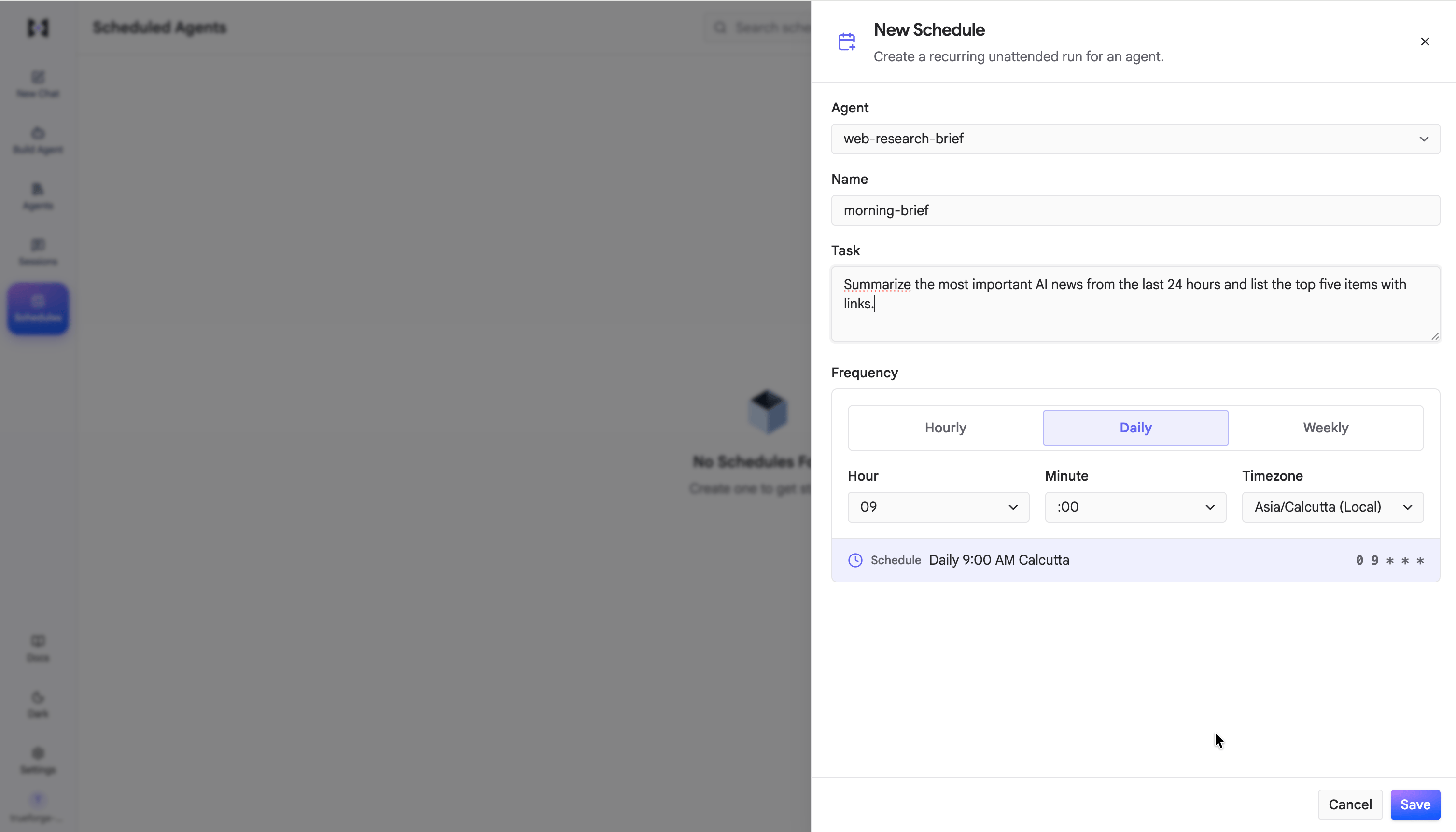
Creating a schedule: pick a saved agent, write the task, and set the cadence and timezone.
The shortest interval is one hour. Times are evaluated in the timezone you choose, and daylight-saving shifts are handled for you.
How runs work
- Every run starts a fresh session, sends the agent the task, and ends when the agent completes it.
- Each run is recorded as a session, marked Scheduled run, so you can open it to read the transcript, tool calls, and result.
- The list shows the outcome of the last five runs for each schedule.
- Use Run now to trigger a run immediately, without waiting for the next scheduled time.
Managing schedules
The Scheduled Agents page lists every schedule with its agent, cadence, status, and recent runs. From here you can:- Search by name, or filter by status or agent.
- Pause a schedule to stop it from running, and resume it later. Paused schedules stay in the list.
- Edit a schedule’s task, cadence, or timezone.
- Delete a schedule you no longer need.
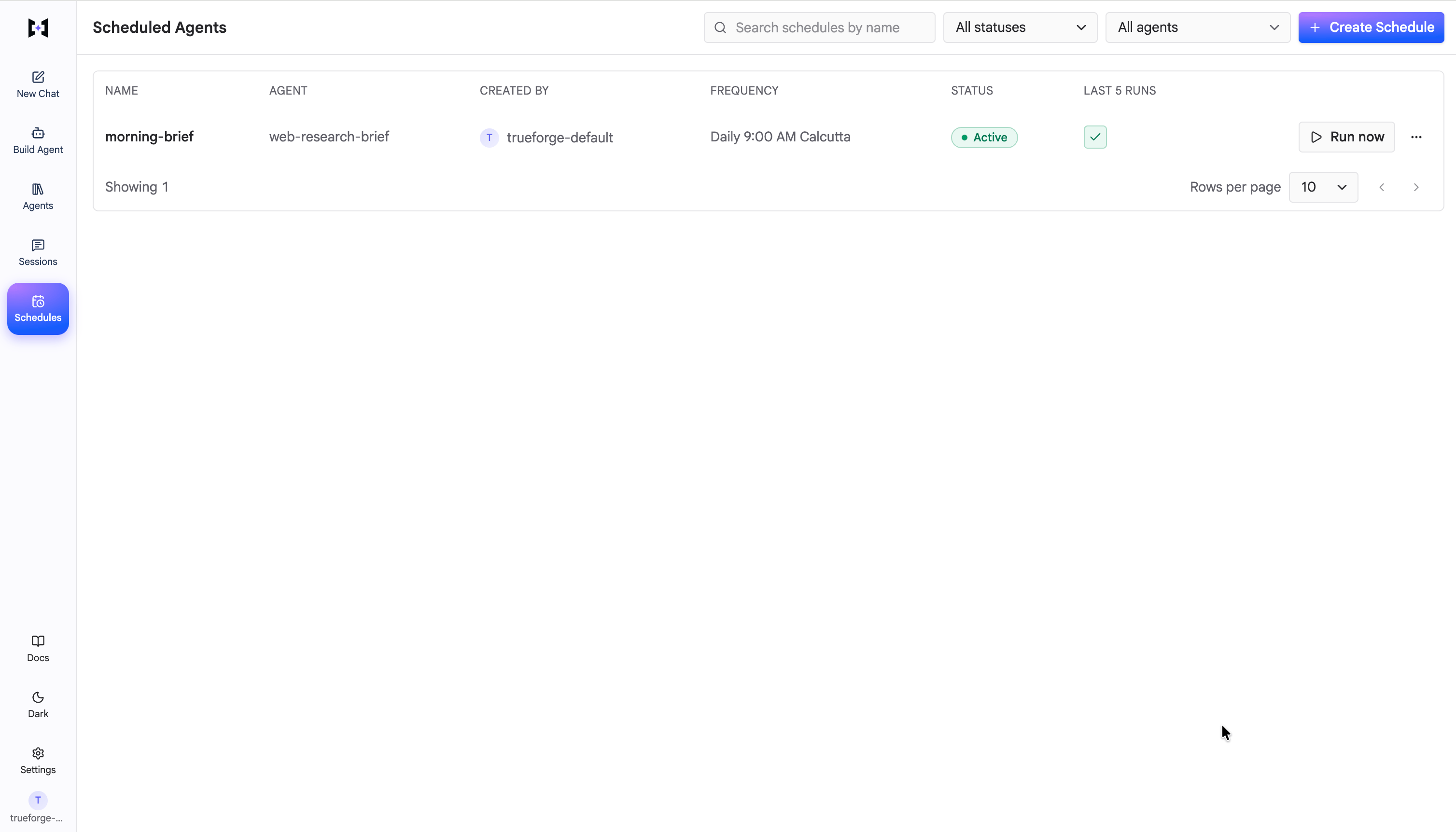
The Scheduled Agents list: each schedule with its agent, frequency, status, and last five runs.
Schedules run on the server, so the server must be running for them to trigger. In hosted mode with login enabled, schedules are owner-scoped: each user sees only their own.
Via the SDK
You can create and manage schedules programmatically withclient.schedules. See Schedules in the SDK.