> ## Documentation Index
> Fetch the complete documentation index at: https://trueforge.dev/llms.txt
> Use this file to discover all available pages before exploring further.
# Schedules
> Run a saved agent on a recurring cadence, unattended, and review each run.
**Schedules** run a saved agent on a recurring cadence, unattended. Each run sends the agent the same task, executes on the server, and is recorded as a [session](/sessions) you can open later. Use them for recurring work such as a daily brief, a periodic report, or a regular check.
## Before you start
A schedule runs an existing **saved agent**, so [create an agent](/create-agent/overview) first. The agent receives the same task on every run, so its instructions and tools should already cover that work.
## Creating a schedule
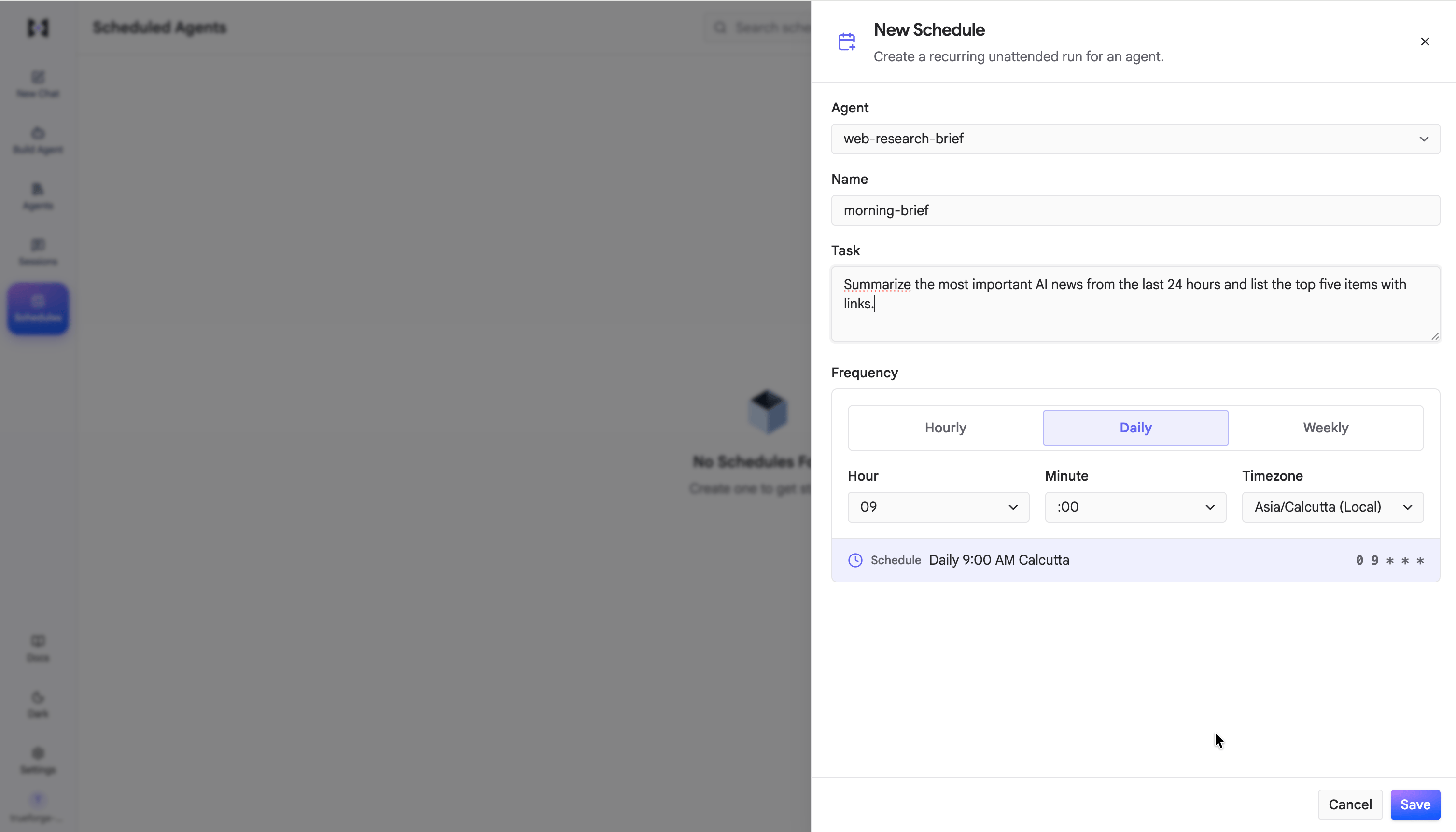
Open **Schedules** from the sidebar and click **Create Schedule**. Fill in:
* **Agent**: the saved agent to run.
* **Name**: a label for the schedule.
* **Task**: the message sent to the agent on every run. Write it as you would the first message in a chat, for example: "Summarize the most important AI news from the last 24 hours and list the top five items with links."
* **Frequency**: **Hourly**, **Daily**, or **Weekly**, with the hour, minute, and **timezone** to run in. The form previews the result, such as "Daily 9:00 AM" in your timezone.
Click **Save**. The schedule becomes active and runs on that cadence.
 The shortest interval is one hour. Times are evaluated in the timezone you choose, and daylight-saving shifts are handled for you.
## How runs work
* Every run starts a fresh session, sends the agent the task, and ends when the agent completes it.
* Each run is recorded as a [session](/sessions), marked **Scheduled run**, so you can open it to read the transcript, tool calls, and result.
* The list shows the outcome of the **last five runs** for each schedule.
* Use **Run now** to trigger a run immediately, without waiting for the next scheduled time.
## Managing schedules
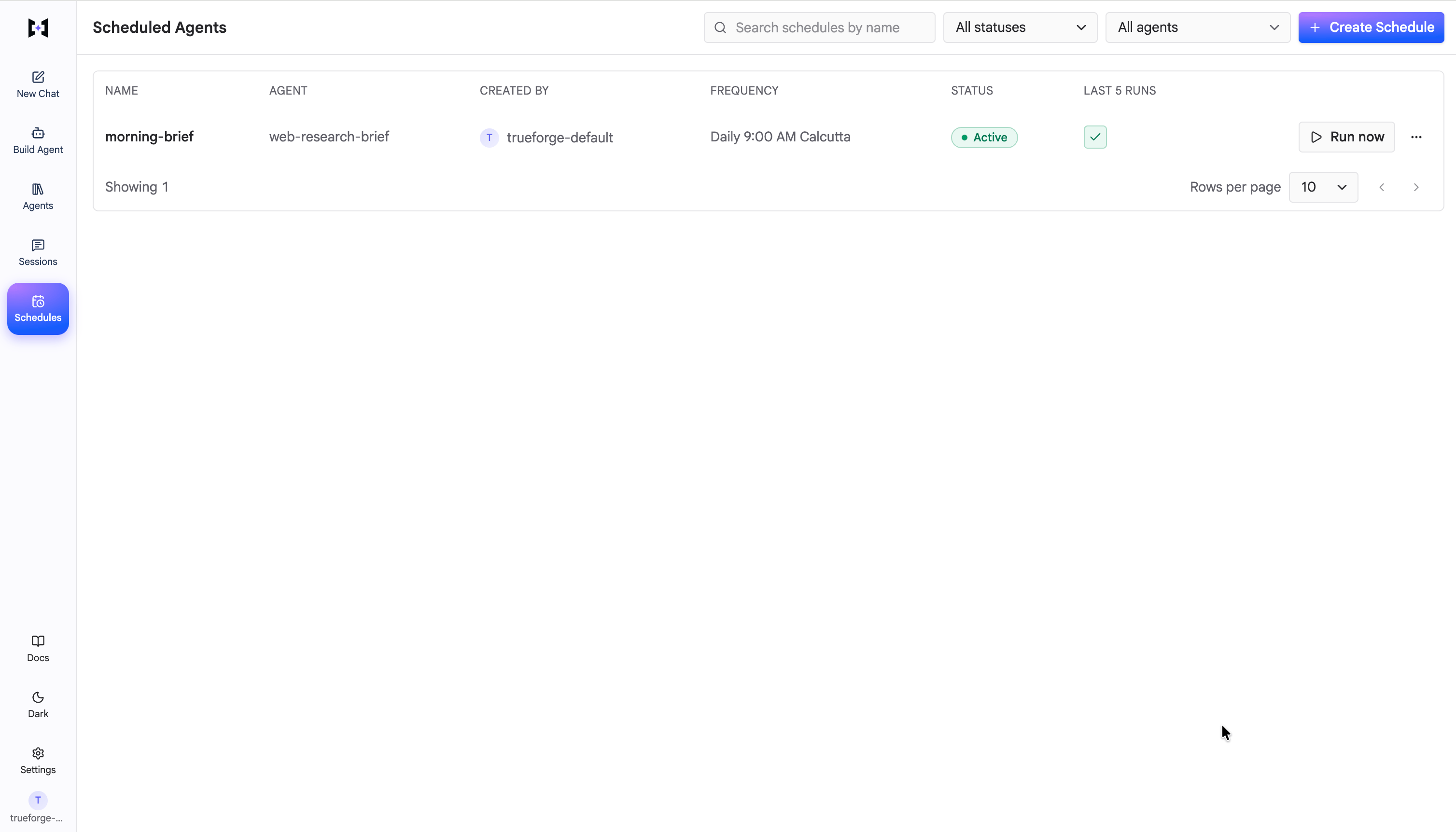
The **Scheduled Agents** page lists every schedule with its agent, cadence, status, and recent runs. From here you can:
* **Search** by name, or filter by **status** or **agent**.
* **Pause** a schedule to stop it from running, and resume it later. Paused schedules stay in the list.
* **Edit** a schedule's task, cadence, or timezone.
* **Delete** a schedule you no longer need.
The shortest interval is one hour. Times are evaluated in the timezone you choose, and daylight-saving shifts are handled for you.
## How runs work
* Every run starts a fresh session, sends the agent the task, and ends when the agent completes it.
* Each run is recorded as a [session](/sessions), marked **Scheduled run**, so you can open it to read the transcript, tool calls, and result.
* The list shows the outcome of the **last five runs** for each schedule.
* Use **Run now** to trigger a run immediately, without waiting for the next scheduled time.
## Managing schedules
The **Scheduled Agents** page lists every schedule with its agent, cadence, status, and recent runs. From here you can:
* **Search** by name, or filter by **status** or **agent**.
* **Pause** a schedule to stop it from running, and resume it later. Paused schedules stay in the list.
* **Edit** a schedule's task, cadence, or timezone.
* **Delete** a schedule you no longer need.
 Schedules run on the server, so the server must be running for them to trigger. In hosted mode with [login](/authentication/overview) enabled, schedules are owner-scoped: each user sees only their own.
## Via the SDK
You can create and manage schedules programmatically with `client.schedules`. See [Schedules in the SDK](/api/use-agent#schedules).
This documentation is built and hosted on [Mintlify](https://mintlify.com), a developer documentation platform.
Schedules run on the server, so the server must be running for them to trigger. In hosted mode with [login](/authentication/overview) enabled, schedules are owner-scoped: each user sees only their own.
## Via the SDK
You can create and manage schedules programmatically with `client.schedules`. See [Schedules in the SDK](/api/use-agent#schedules).
This documentation is built and hosted on [Mintlify](https://mintlify.com), a developer documentation platform.