> ## Documentation Index
> Fetch the complete documentation index at: https://trueforge.dev/llms.txt
> Use this file to discover all available pages before exploring further.
# Setup MCP Servers
> Connect remote MCP servers from the shipped catalog or your own URL — with header auth or OAuth.
MCP servers are how your agent reaches real systems: SaaS apps, internal APIs, data platforms, ticketing tools, and infrastructure controls.
Register them once under **Settings → Connectors**. Agents attach servers by name. Credentials live in the connector configuration, never in agent definitions.
## Connecting a server
Open **Settings → Connectors**, pick a server from the catalog, complete auth if required, and save. The server is then available when you [create an agent](/create-agent/overview).
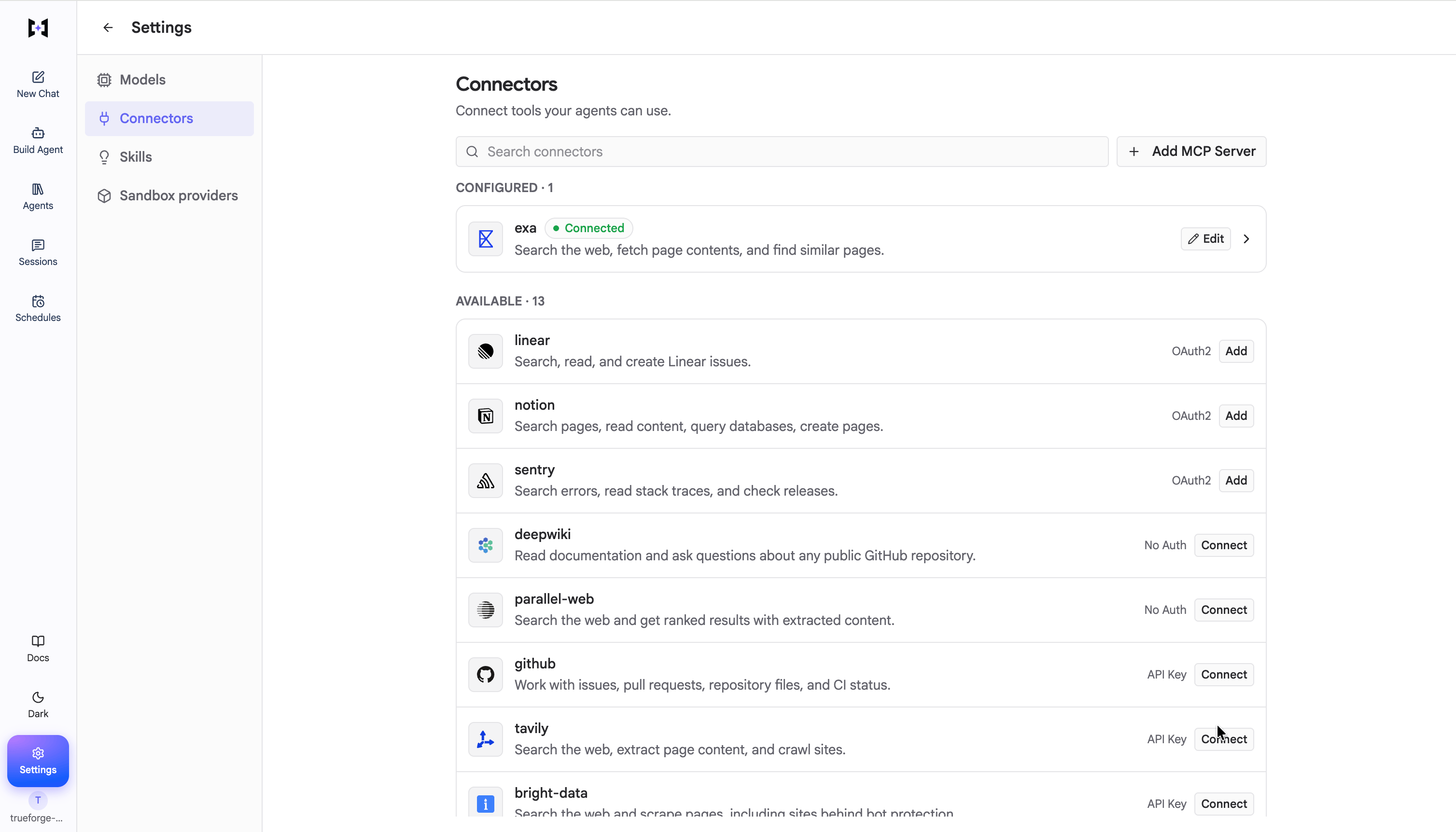 You can also use **Add MCP Server** to register any remote URL that is not in the catalog.
The catalog entries under **Settings → Connectors** (Linear, Notion, GitHub, and others) come from the shipped MCP catalog — see [Initial Setup](/harness/initial-setup#what-is-supported-out-of-the-box) for how catalogs work and how to change what the UI offers.
## Authentication options
* **No auth** — public or network-trusted servers.
* **Header auth** — static HTTP headers (API keys, bearer tokens) sent on every request.
* **OAuth (Dynamic Client Registration)** — TrueForge registers as an OAuth client, runs the authorization-code flow, and stores and refreshes tokens. Users never paste tokens into the agent.
For OAuth to work, the MCP server must redirect the user back to your TrueForge instance — so the server needs to
know its own public address. That is the `PUBLIC_BASE_URL` environment variable. It defaults to
`http://localhost:`, which is fine on your own machine; set it whenever TrueForge is reached at a different
address (a domain, reverse proxy, or another host). Where to set it depends on how you run TrueForge — as an env var
for `npx`, in `packages/trueforge/.env` for Docker Compose, or `server.publicBaseUrl` for Helm. See the
[Quickstart FAQ](/quickstart#faq).
## In-chat authentication
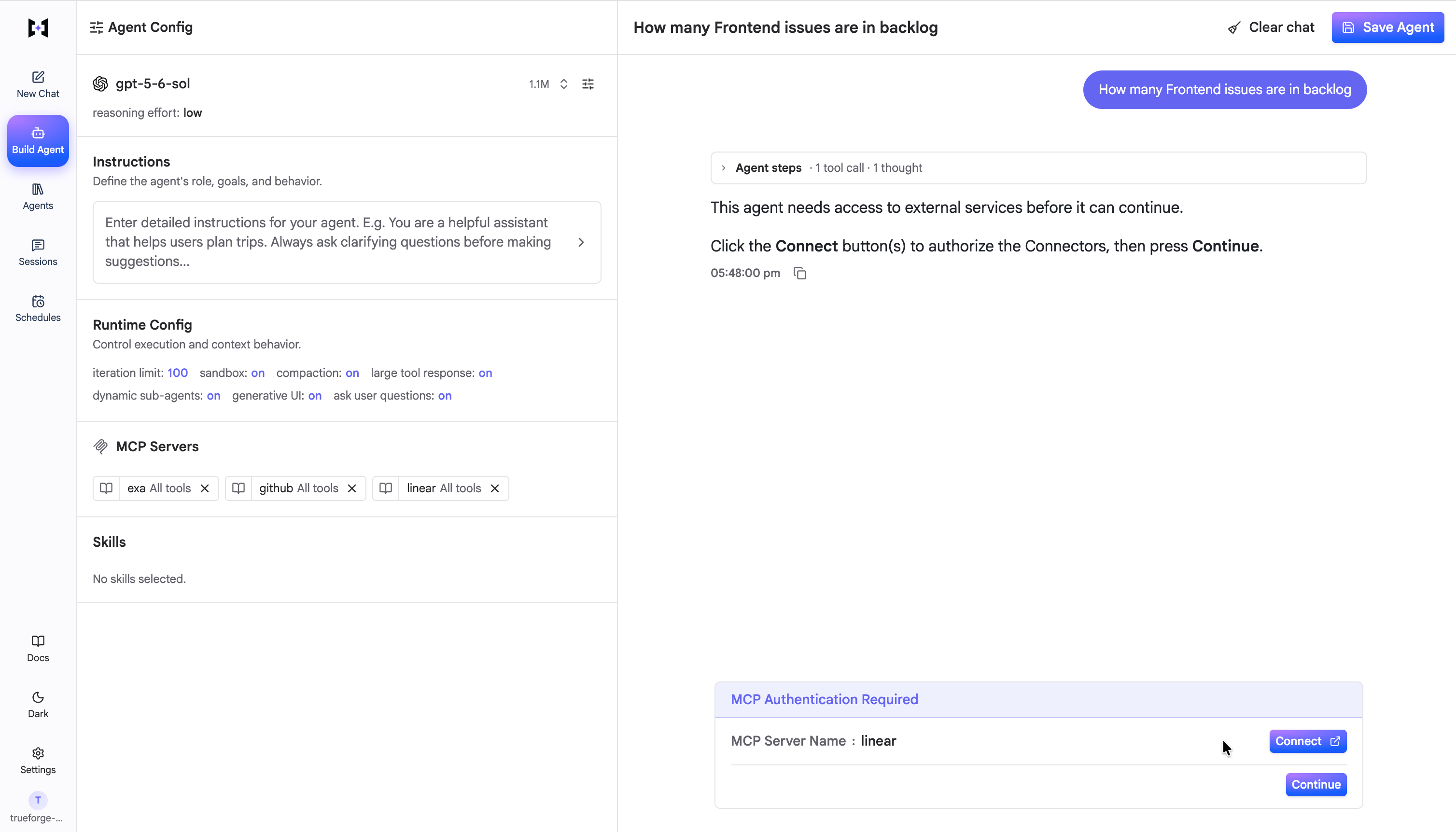
If a server uses OAuth and the user has not yet authorized it, the turn pauses and the chat UI shows a **Connect** button. The user completes OAuth in a popup and continues the conversation — the agent does not fail.
 ## Next steps
* Attach MCP servers when you [create an agent](/create-agent/overview).
* Configure which tools need [approval](/create-agent/overview#what’s-in-an-agent) (API today).
* Keep tool schemas lean with [deferred loading](/key-features/deferred-tool-loading) in Harness Capabilities.
This documentation is built and hosted on [Mintlify](https://mintlify.com), a developer documentation platform.
## Next steps
* Attach MCP servers when you [create an agent](/create-agent/overview).
* Configure which tools need [approval](/create-agent/overview#what’s-in-an-agent) (API today).
* Keep tool schemas lean with [deferred loading](/key-features/deferred-tool-loading) in Harness Capabilities.
This documentation is built and hosted on [Mintlify](https://mintlify.com), a developer documentation platform.