> ## Documentation Index
> Fetch the complete documentation index at: https://trueforge.dev/llms.txt
> Use this file to discover all available pages before exploring further.
# Create an Agent
> Every option on an agent, what the UI covers today, and how to set the rest via the API.
An agent is a saved, reusable definition: a model, instructions, the tools and skills it can use, and a set of runtime behaviors. You build one on the **Build Agent** page or via the [SDK](/api/overview) — either way, TrueForge stores the same **agent spec**, and any number of conversations can run against it.
* **[What's in an agent](#what’s-in-an-agent)** — every option, explained.
* **[Create an agent via the UI](#create-an-agent-via-the-ui)** — the options available in the UI today.
* **[Create an agent via the API](#create-an-agent-via-the-api)** — the full agent spec, with every field.
## What's in an agent
Each option below is part of the agent definition. The **Set in** line on each shows where you can configure it today — the chat **UI**, the **API**, or both.
The LLM that runs the agent loop. Pick any model from the providers you configured under **Settings → Models**; switching later is a one-click change, with no new API keys in the agent definition.
Via the API you can also pass **model parameters** — `temperature`, `max_tokens`, `top_p`, `top_k`, `reasoning_effort`, and more — which are forwarded to the provider as-is.
**Set in:** UI (which model) · API (model + parameters)
The system prompt for this agent's role — what it does, who it's for, and how it should behave. The harness appends its own guidance for enabled capabilities (sandbox, subagents, and so on), so keep this focused on *your* agent and move long playbooks into [skills](/skills) instead of the prompt.
**Set in:** UI + API
The [MCP servers](/mcp-servers) whose tools the agent can call, attached by name from **Settings → Connectors**. Credentials live in the connector, never in the agent. Prefer only the servers the agent actually needs.
Per server you can further control:
* **Which tools are enabled or disabled** — expose everything, only read-only tools, or a specific list. Choose these in **Select MCP Tools** when you attach the server, or via the API.
* **Preload** — load a server's full tool definitions upfront, or (default) discover them on demand to keep context lean. See [Deferred Tool Loading](/key-features/deferred-tool-loading). Toggle it on the connector's chip in Build Agent, or via the API.
* **Tool approval** — pause before sensitive tool calls until a human approves. See below.
**Set in:** UI + API
Some tool calls shouldn't run without a human's sign-off. **Tool approval** pauses the agent before such a call, shows the tool name and arguments, and resumes only after the user chooses **Allow** or **Deny** in the chat UI.
By default, the agent asks for approval before tools the MCP server marks as **write** or **destructive** (`require_approval_for_tools` defaults to `["@write", "@destructive"]`). Read-only tools run on their own.
`@write` and `@destructive` only match tools the MCP server has labeled. Many servers skip labels, so those tools run without asking — even if they change data. To pause on a specific tool anyway, list it by name, or set `require_approval_for_tools` to `["@all"]`.
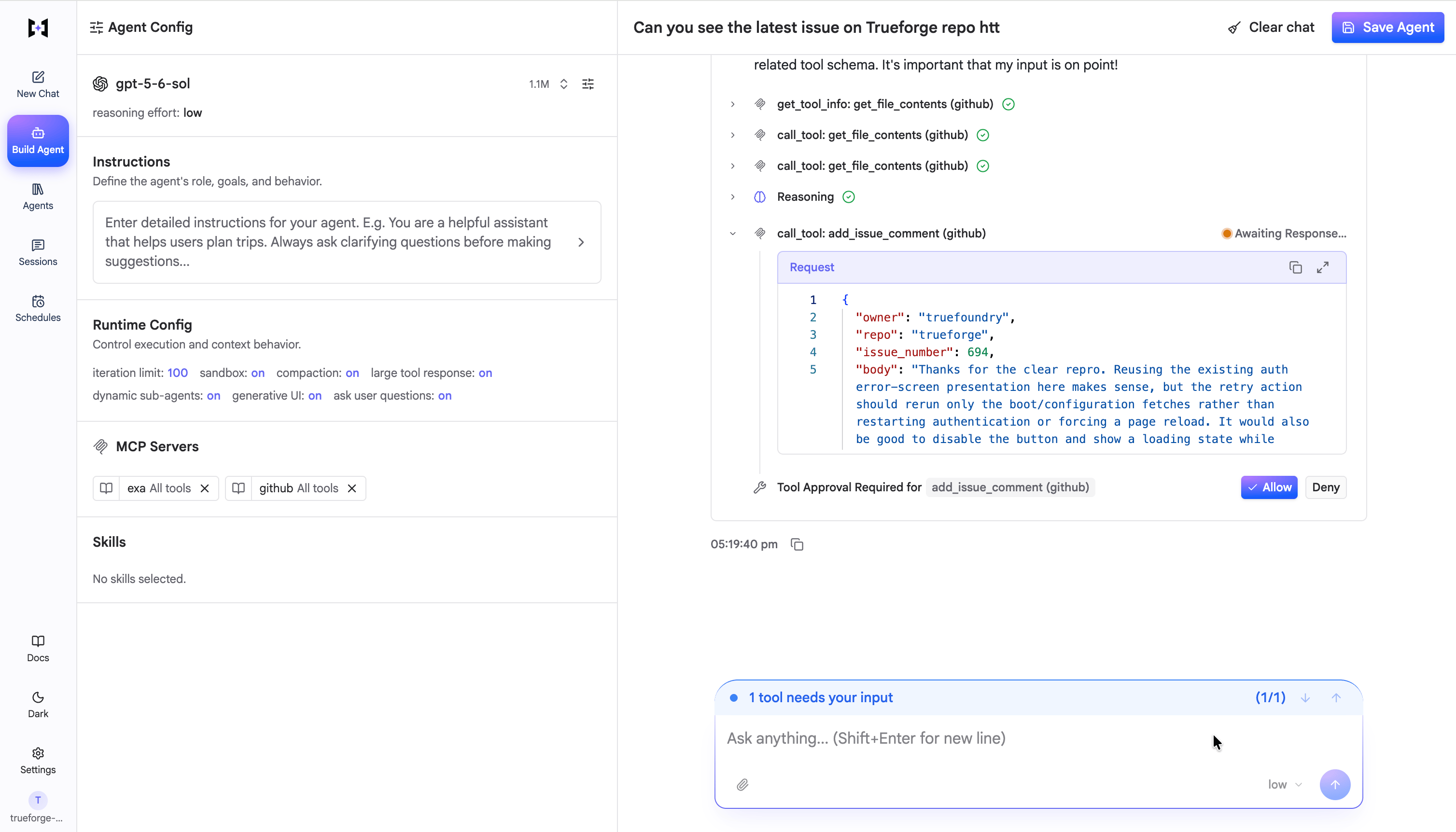 You can override which tools require approval per MCP server. In **Select MCP Tools**, the shield next to an enabled tool toggles approval for it, and the **Other Actions** / **Destructive Actions** headers each have an **Approval required** switch for that group; via the API, set [`require_approval_for_tools`](#mcp_servers) to `@all`, `@write`, `@destructive`, or literal tool names.
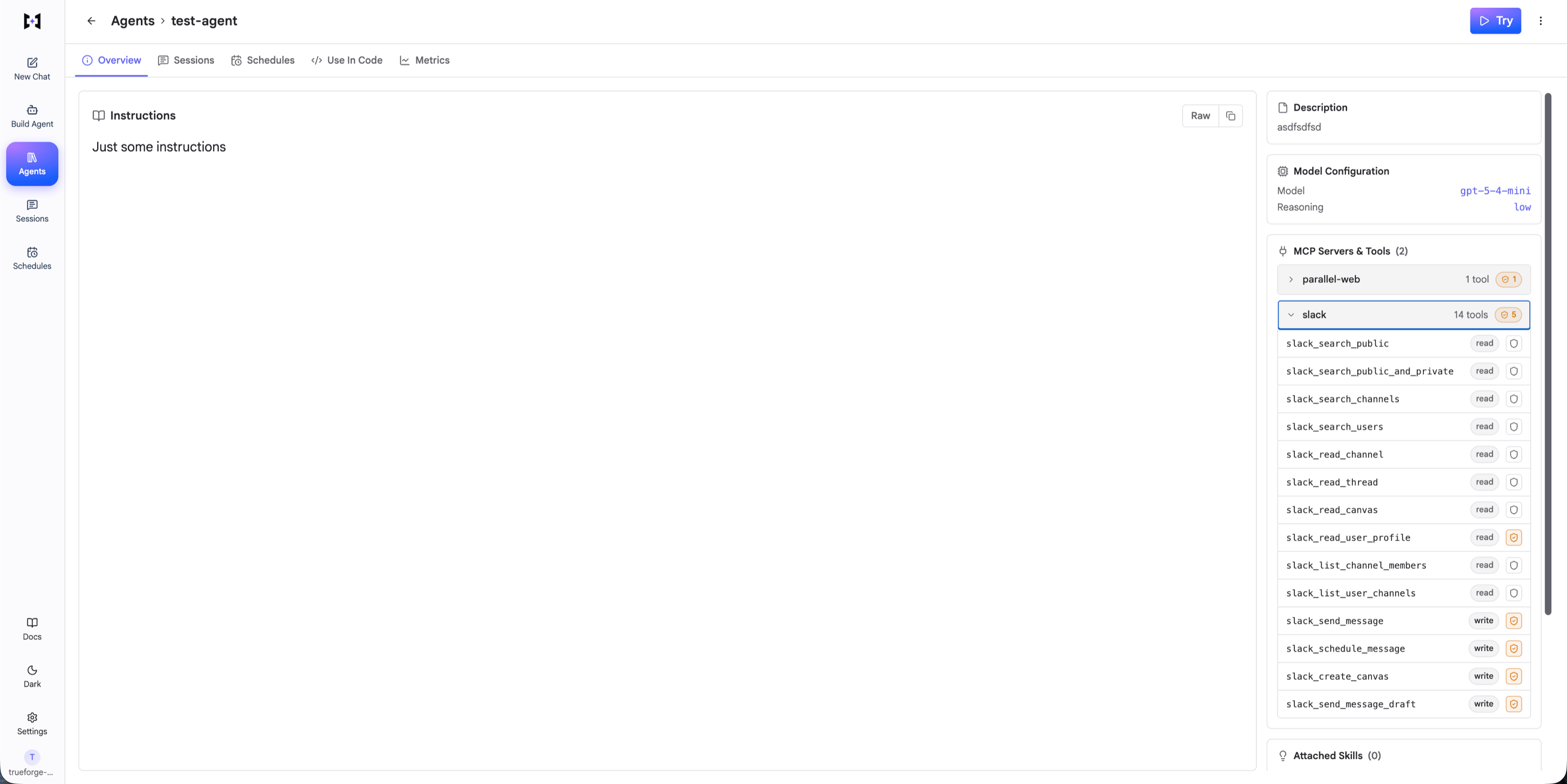
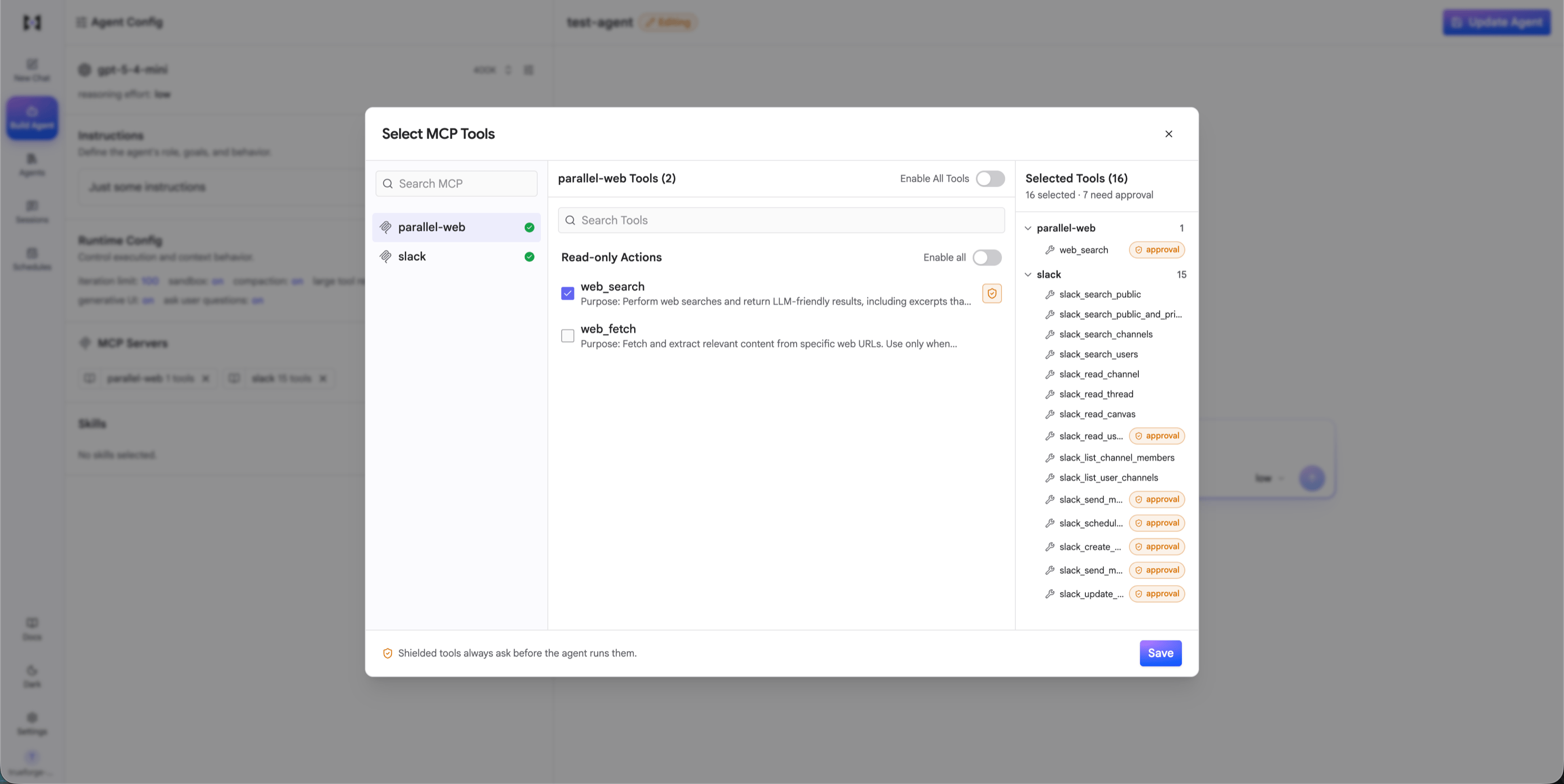 To review what a saved agent ended up with, open its **Overview** tab: **MCP Servers & Tools** lists each attached server with how many of its tools need approval, and expanding one shows every tool with its `read` / `write` / `destructive` label and shield state.
 **Set in:** UI + API
[Skills](/skills) are git-backed `SKILL.md` instruction packs that teach the agent specialized procedures — querying a database, following an escalation playbook, drafting release notes. Attach them by name; the agent loads the full skill only when it decides the skill is relevant.
Attaching skills requires the agent's **sandbox** to be enabled.
**Set in:** UI + API
An isolated environment for running code, files, and shell commands, separate from the server. It's **off by default** and provisioned only when the agent needs it. Required for [skills](/skills) and [Code Mode](/key-features/code-mode).
Optional extra: allow clients to **download files** the agent produces.
**Set in:** UI (on/off + file downloads) · API (same)
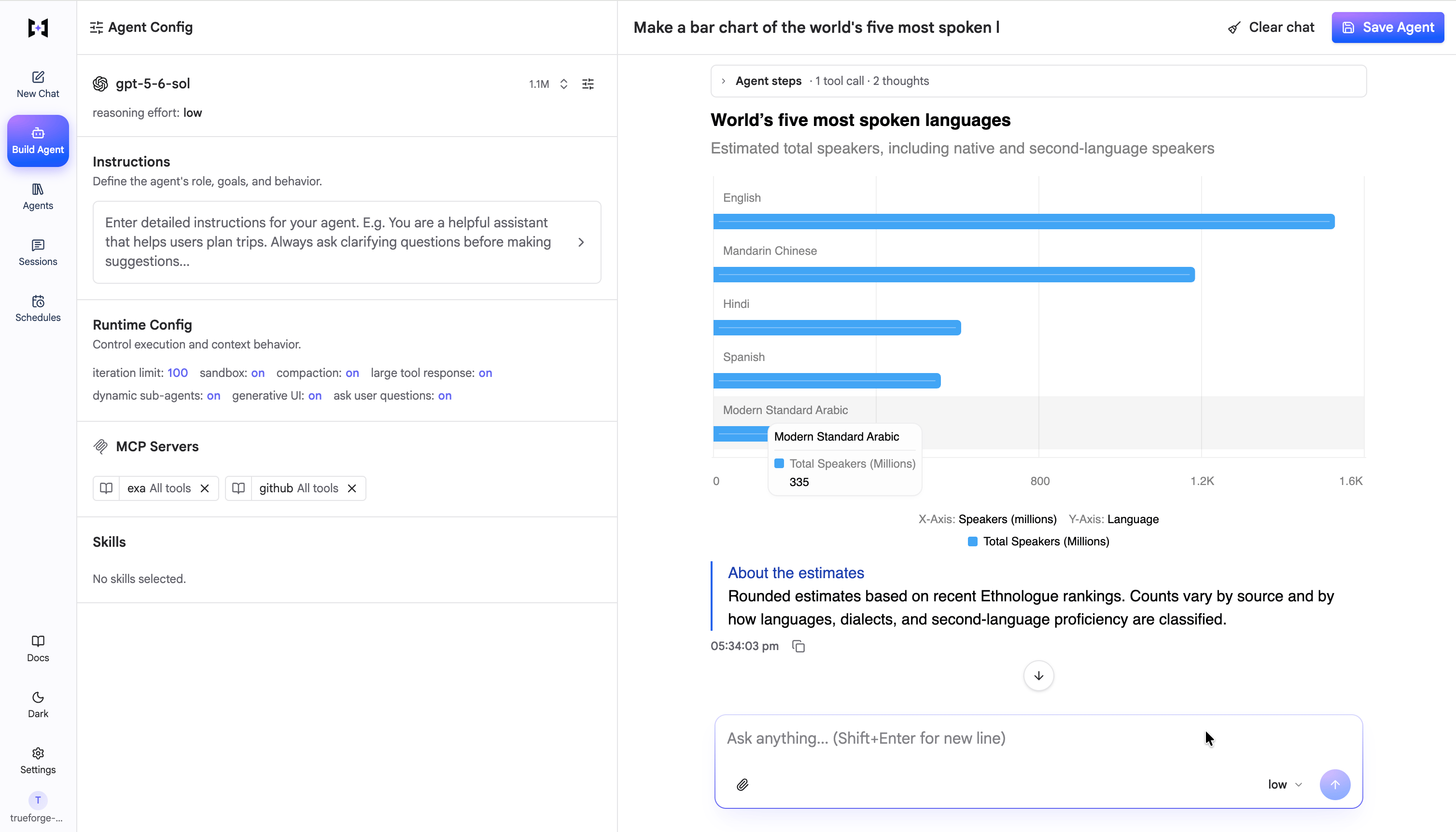
Lets the agent stream interactive components — charts, tables, cards, forms — that the chat UI renders as React. The agent embeds a small OpenUI snippet in its response; the client renders real, registered components as tokens stream in (no arbitrary code execution). On by default.
**Set in:** UI + API
[Skills](/skills) are git-backed `SKILL.md` instruction packs that teach the agent specialized procedures — querying a database, following an escalation playbook, drafting release notes. Attach them by name; the agent loads the full skill only when it decides the skill is relevant.
Attaching skills requires the agent's **sandbox** to be enabled.
**Set in:** UI + API
An isolated environment for running code, files, and shell commands, separate from the server. It's **off by default** and provisioned only when the agent needs it. Required for [skills](/skills) and [Code Mode](/key-features/code-mode).
Optional extra: allow clients to **download files** the agent produces.
**Set in:** UI (on/off + file downloads) · API (same)
Lets the agent stream interactive components — charts, tables, cards, forms — that the chat UI renders as React. The agent embeds a small OpenUI snippet in its response; the client renders real, registered components as tokens stream in (no arbitrary code execution). On by default.
 | Use case | What the agent renders |
| - | - |
| Dashboards | KPI cards, charts, comparison tables |
| Tables | Sortable logs, resources, result sets |
| Charts | Bar, line, pie patterns faster than prose |
| Forms | Guided inputs for the next action |
Skip it for short explanations, bullet lists, or code where markdown is enough.
**Set in:** UI + API
Lets the agent pause at a decision it shouldn't guess — which environment to deploy to, which of several matches the user meant, an ambiguous required field — show a multiple-choice prompt, and resume with the chosen answer. On by default.
| Use case | What the agent renders |
| - | - |
| Dashboards | KPI cards, charts, comparison tables |
| Tables | Sortable logs, resources, result sets |
| Charts | Bar, line, pie patterns faster than prose |
| Forms | Guided inputs for the next action |
Skip it for short explanations, bullet lists, or code where markdown is enough.
**Set in:** UI + API
Lets the agent pause at a decision it shouldn't guess — which environment to deploy to, which of several matches the user meant, an ambiguous required field — show a multiple-choice prompt, and resume with the chosen answer. On by default.
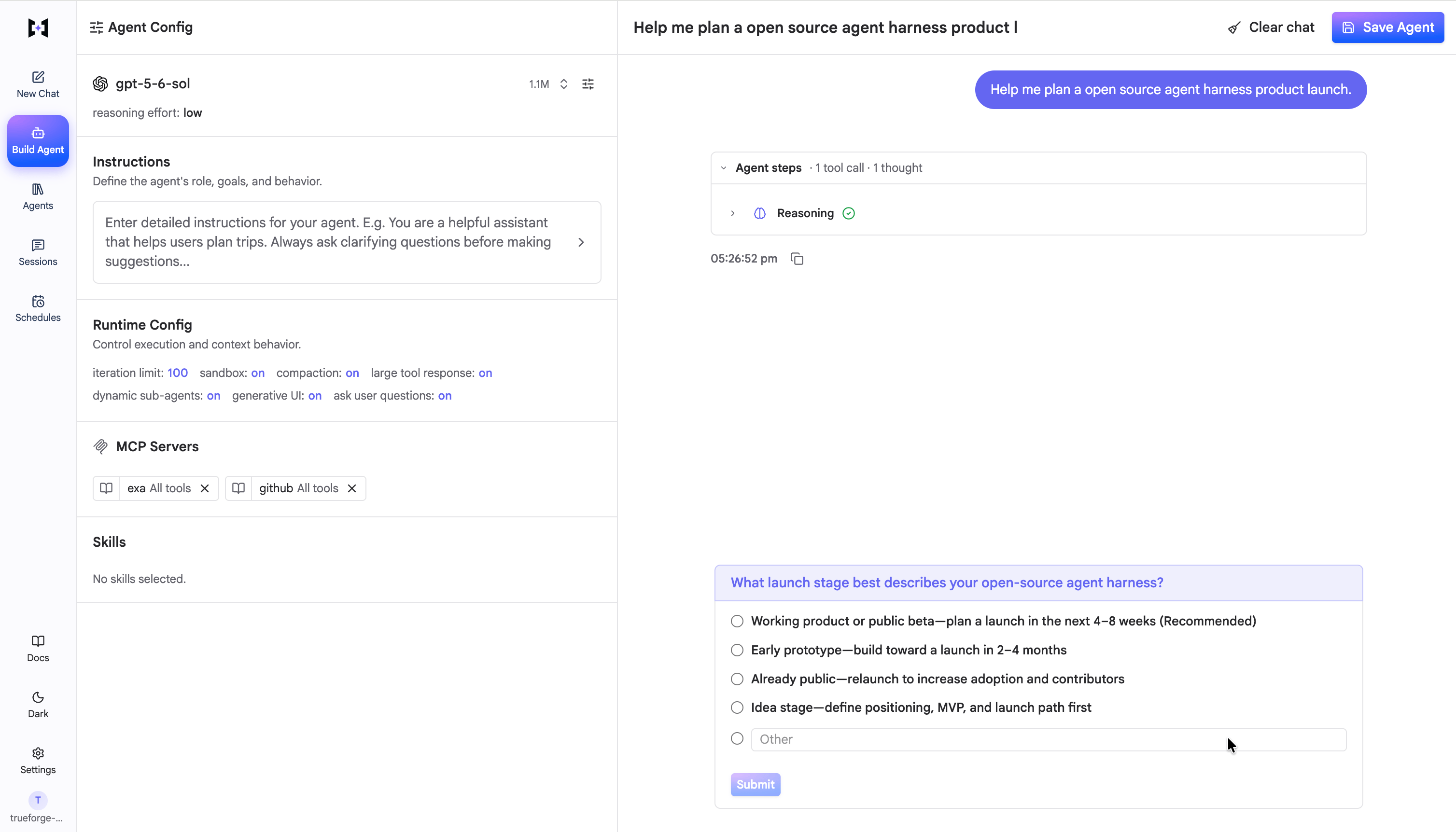 Good for disambiguating matches, filling required fields the user didn't specify, or picking a strategy before a destructive step. Skip it when the agent can confidently infer the answer — over-asking turns the agent into a form.
**Set in:** UI + API
Enable the harness to spawn **subagents**. This lets the TrueForge harness solve complicated tasks by breaking them into smaller pieces and running them in parallel, then merging only their results — keeping the main agent's context clean. On by default. See [Subagents](/key-features/subagents) for how it works.
Good for disambiguating matches, filling required fields the user didn't specify, or picking a strategy before a destructive step. Skip it when the agent can confidently infer the answer — over-asking turns the agent into a form.
**Set in:** UI + API
Enable the harness to spawn **subagents**. This lets the TrueForge harness solve complicated tasks by breaking them into smaller pieces and running them in parallel, then merging only their results — keeping the main agent's context clean. On by default. See [Subagents](/key-features/subagents) for how it works.
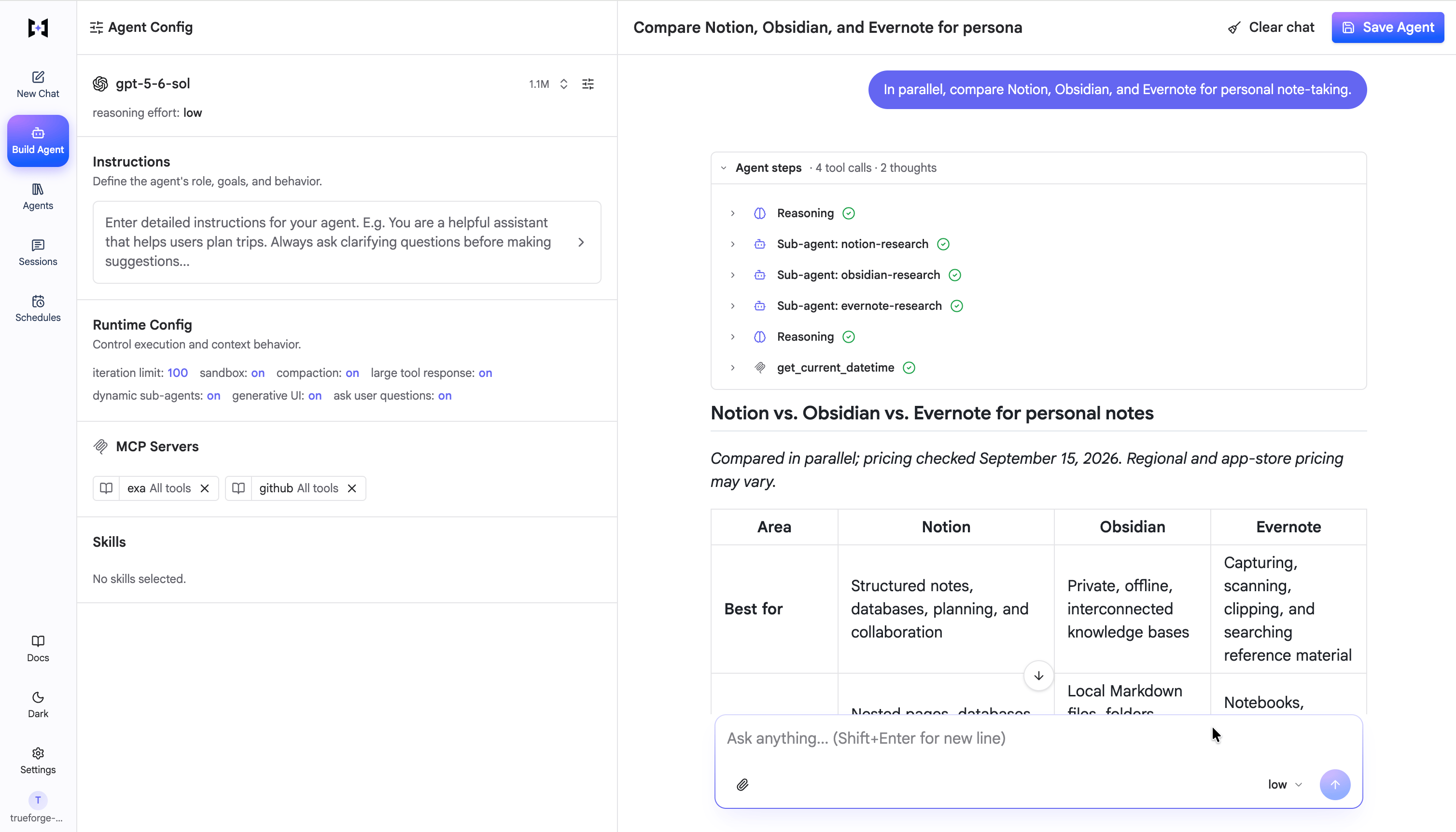 **Set in:** UI + API
Keeps long runs efficient. **Compaction** summarizes older history once the context crosses a token threshold, and **large tool-response offloading** writes oversized tool outputs to a sandbox file and leaves a short preview in context. Both are on by default, with the compaction threshold and both toggles in **Runtime Config**. See [Harness Capabilities](/key-features/overview#context-compaction) and [Large tool responses](/key-features/large-tool-responses).
**Set in:** UI + API
A safety stop for how many agent-loop steps a single turn can take (1–1024, default 100). It halts runaway loops; it isn't a normal quality lever. Set it in **Runtime Config**.
**Set in:** UI + API
Constrains the agent's final output. The default is free-form text; you can require a JSON object, or a JSON value matching a schema you provide.
**Set in:** API
Optional starter messages added to the top of **every new conversation** with this agent, before the user says anything. Use them to prime the agent each time — for example, an opening line it should greet with, or standing context every session should begin from. They apply at the start of each session, not just once.
**Set in:** API
## Create an agent via the UI
Open **Build Agent** from the sidebar. The **Agent Config** panel on the left is where you assemble the agent; the chat on the right lets you test it as you go.
1. **Select a model** from the providers you configured under **Settings → Models**, and set its reasoning effort.
2. Write focused **instructions** — role, audience, and behavior.
3. **Add MCP servers** — open **Select MCP Tools**, pick the servers the agent should use, and choose which of their tools to enable. Use the shield on a tool to require **approval** before it runs — destructive tools are gated by default. Set a server's **preload** toggle on its chip to load its tools upfront.
4. **Add skills** if the agent should follow specialized procedures (requires [sandbox](/sandbox) enabled).
5. Open **Runtime Config** to review execution and context behavior — Dynamic sub-agents, Generative UI, Ask user questions, the sandbox, iteration limit, and context compaction (all on by default).
6. Click **Save Agent**, give it a name and description, and save. It then appears under [Agents](/agent-library).
**Set in:** UI + API
Keeps long runs efficient. **Compaction** summarizes older history once the context crosses a token threshold, and **large tool-response offloading** writes oversized tool outputs to a sandbox file and leaves a short preview in context. Both are on by default, with the compaction threshold and both toggles in **Runtime Config**. See [Harness Capabilities](/key-features/overview#context-compaction) and [Large tool responses](/key-features/large-tool-responses).
**Set in:** UI + API
A safety stop for how many agent-loop steps a single turn can take (1–1024, default 100). It halts runaway loops; it isn't a normal quality lever. Set it in **Runtime Config**.
**Set in:** UI + API
Constrains the agent's final output. The default is free-form text; you can require a JSON object, or a JSON value matching a schema you provide.
**Set in:** API
Optional starter messages added to the top of **every new conversation** with this agent, before the user says anything. Use them to prime the agent each time — for example, an opening line it should greet with, or standing context every session should begin from. They apply at the start of each session, not just once.
**Set in:** API
## Create an agent via the UI
Open **Build Agent** from the sidebar. The **Agent Config** panel on the left is where you assemble the agent; the chat on the right lets you test it as you go.
1. **Select a model** from the providers you configured under **Settings → Models**, and set its reasoning effort.
2. Write focused **instructions** — role, audience, and behavior.
3. **Add MCP servers** — open **Select MCP Tools**, pick the servers the agent should use, and choose which of their tools to enable. Use the shield on a tool to require **approval** before it runs — destructive tools are gated by default. Set a server's **preload** toggle on its chip to load its tools upfront.
4. **Add skills** if the agent should follow specialized procedures (requires [sandbox](/sandbox) enabled).
5. Open **Runtime Config** to review execution and context behavior — Dynamic sub-agents, Generative UI, Ask user questions, the sandbox, iteration limit, and context compaction (all on by default).
6. Click **Save Agent**, give it a name and description, and save. It then appears under [Agents](/agent-library).
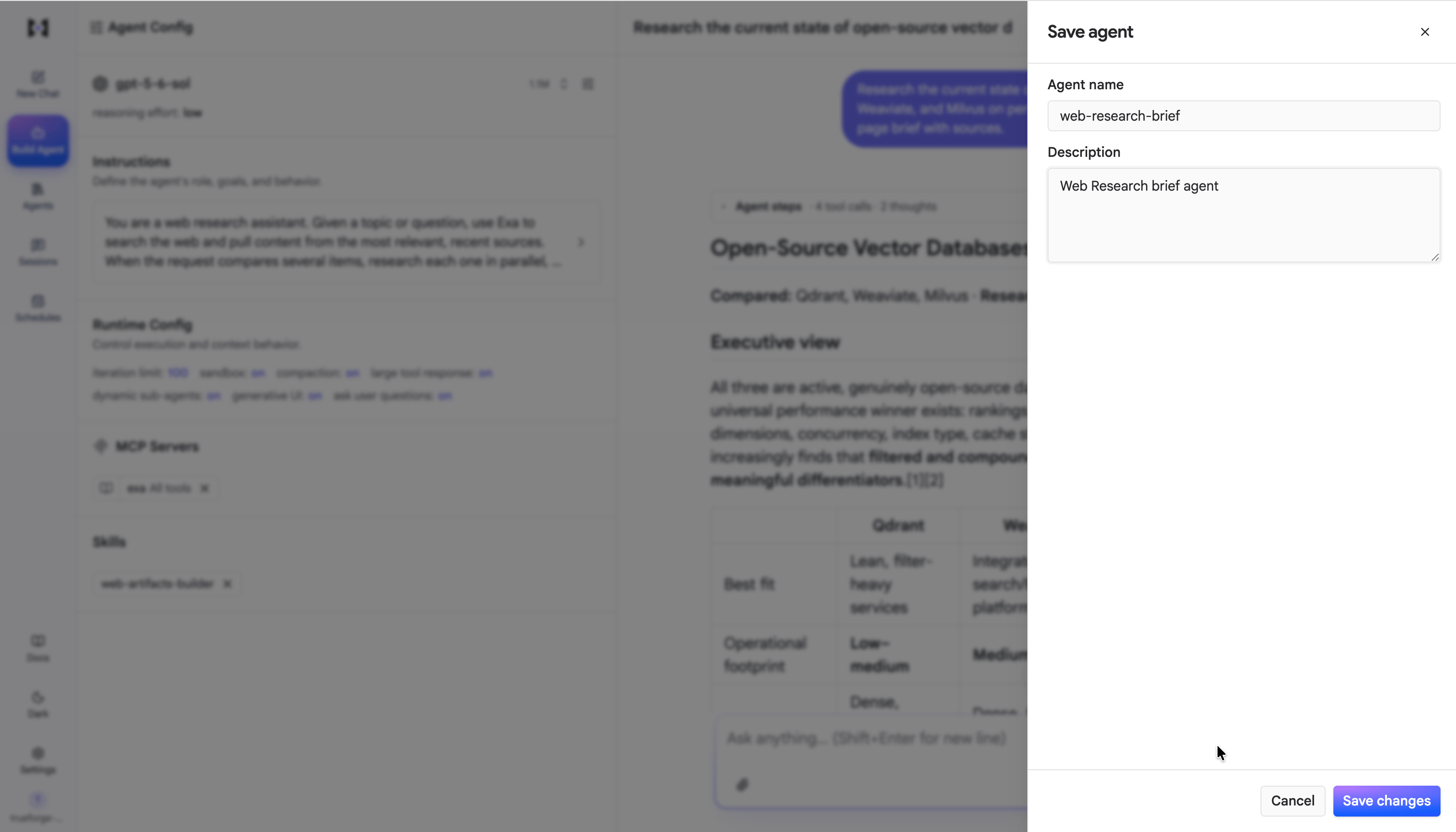 Available in the UI today: **model**, **instructions**, **MCP servers** (attach, tool selection, tool approval, preload), **skills**, **sandbox** (on/off and file downloads), **iteration limit**, **context compaction**, and the **Dynamic sub-agents**, **Generative UI**, and **Ask user questions** toggles.
A few options are still API only: model parameters (temperature, top\_p, and so on), response format, and seed messages. See [Create an agent via the API](#create-an-agent-via-the-api).
## Create an agent via the API
The [SDK](/api/overview) and HTTP API expose **every** option through the **agent spec**. You either save the spec as a named, reusable agent and reference it by name, or pass it inline when you open a session. All fields are `snake_case`, and every field except `model` has a default.
### Save and run an agent
```typescript TypeScript wrap theme={null}
import { TrueForge } from '@truefoundry/trueforge-sdk';
const client = new TrueForge({
baseUrl: process.env.TRUEFORGE_BASE_URL ?? 'http://localhost:8790',
// token: process.env.TRUEFORGE_TOKEN, // ID token when OIDC login is enabled
});
```
```python Python wrap theme={null}
import os
from trueforge_sdk import TrueForge
client = TrueForge(
base_url=os.environ.get("TRUEFORGE_BASE_URL", "http://localhost:8790"),
# token=os.environ.get("TRUEFORGE_TOKEN"), # ID token when OIDC login is enabled
)
```
When [OIDC login](/authentication/overview) is on, pass an ID token; see [Get a token and connect](/api/quickstart#get-a-token-and-connect). When login is off, omit `token`.
`agents.create` (`POST /api/v1/agents`) stores the spec under a unique `name` and returns the agent with its server-generated `id`. The name is immutable and must be unique — a duplicate returns `409`. `description` is required.
```typescript TypeScript wrap theme={null}
const { data: agent } = await client.agents.create({
name: 'support-bot',
description: 'Helps customers with orders.',
manifest: {
model: { name: 'anthropic/claude-sonnet-4-6' },
instructions: 'You help customers with orders. Always confirm before processing refunds.',
},
});
```
```python Python wrap theme={null}
agent = client.agents.create(
name="support-bot",
description="Helps customers with orders.",
manifest={
"model": {"name": "anthropic/claude-sonnet-4-6"},
"instructions": "You help customers with orders. Always confirm before processing refunds.",
},
)
```
Reference the saved agent by name, then stream a turn. See [Use an agent](/api/use-agent) for the full loop, including approvals and questions.
```typescript TypeScript wrap theme={null}
const { data: session } = await client.sessions.create({ agent: { name: 'support-bot' } });
const stream = await client.sessions.createTurnStream(session.id, {
input: [{ type: 'user.message', content: 'Where is order ORD-2031?' }],
});
for await (const { data: event } of stream.withMetadata()) console.log(event.type);
```
```python Python wrap theme={null}
session = client.sessions.create(agent={"name": "support-bot"})
stream = client.sessions.create_turn_stream(
session_id=session.data.id,
input=[{"type": "user.message", "content": "Where is order ORD-2031?"}],
)
for event in stream:
print(event.type)
```
**Skip saving** — pass the spec inline when you create the session, and nothing is persisted to the registry:
```typescript TypeScript wrap theme={null}
const { data: session } = await client.sessions.create({
agent: {
spec: {
model: { name: 'anthropic/claude-sonnet-4-6' },
instructions: 'You are a concise research assistant.',
},
},
});
```
```python Python wrap theme={null}
session = client.sessions.create(
agent={
"spec": {
"model": {"name": "anthropic/claude-sonnet-4-6"},
"instructions": "You are a concise research assistant.",
},
},
)
```
**Manage saved agents** with the rest of the `agents` methods:
| Method | Endpoint | What it does |
| - | - | - |
| `agents.create` | `POST /api/v1/agents` | Save a new agent under a unique `name`; returns its `id`. |
| `agents.list` | `GET /api/v1/agents` | List all configured agents. |
| `agents.get` | `GET /api/v1/agents/{agent_id}` | Fetch one agent by its immutable `id`. |
| `agents.update` | `PUT /api/v1/agents/{agent_id}` | Replace an existing agent's manifest (the `name` can't change). |
| `agents.delete` | `DELETE /api/v1/agents/{agent_id}` | Delete an agent (idempotent). |
### The full agent spec
The `manifest` you save (or the inline `spec`) is the agent spec below — every field, with defaults.
```json theme={null}
{
"model": {
"name": "anthropic/claude-sonnet-4-6",
"params": { "max_tokens": 4096, "temperature": 0.2 }
},
"instructions": "You help customers with orders. Always confirm before processing refunds.",
"mcp_servers": [
{
"name": "orders-api",
"enable_tools": ["@all"],
"require_approval_for_tools": ["process_refund"],
"preload": false
}
],
"skills": [{ "name": "customer-support" }],
"config": {
"sandbox": { "enabled": true },
"generative_ui": { "enabled": true },
"ask_user_questions": { "enabled": true },
"dynamic_sub_agents": { "enabled": true },
"context_management": {
"compaction": {
"enabled": true,
"trigger": { "type": "input_tokens", "value": 80000 }
},
"large_tool_response": { "enabled": true }
},
"iteration_limit": 50
}
}
```
The **Set via** column on each table below marks where a field is configurable today — **UI**, **API**, or both.
### `model`
The only required field.
| Field | Type | Required | Set via | Description |
| - | - | - | - | - |
| `name` | string | Yes | UI + API | Model FQN: `provider/model`, e.g. `openai/gpt-5.2`. See [Models](/models). |
| `params` | object | No | API | Model call parameters, passed through to the provider. |
`model.params` recognizes `max_tokens`, `temperature`, `top_p`, `top_k`, `parallel_tool_calls` (boolean), and `reasoning_effort` (string). Extra keys are allowed and forwarded to the provider as-is.
### `instructions`
**Set via:** UI + API
Optional string. The agent's system prompt — its role, behavior, and constraints.
### `mcp_servers`
Optional array. Each entry attaches a [configured MCP server](/mcp-servers) by name:
| Field | Default | Set via | Description |
| - | - | - | - |
| `name` | — (required) | UI + API | Name of a server registered under **Settings → Connectors**. |
| `enable_tools` | `["@all"]` | API | Tools exposed to the agent: `@all`, `@read-only`, or literal tool names. |
| `disable_tools` | `[]` | API | Tools subtracted from the enabled set. |
| `preload_tools` | `[]` | API | Tools loaded eagerly into context while the rest stay deferred. |
| `require_approval_for_tools` | `["@write", "@destructive"]` | UI + API | Tools that pause for [human approval](#tool-approval): `@all`, `@write`, `@destructive`, or literal names. |
| `preload` | `false` | UI + API | Load all tool schemas upfront instead of [on demand](/key-features/deferred-tool-loading). |
`@read-only`, `@write`, and `@destructive` follow the labels the MCP server puts on each tool. Unlabeled tools (and tools marked read-only) are not covered by `@write` / `@destructive`, so they run without an approval pause. Gate them by name, or use `@all`.
### `skills`
**Set via:** UI + API
Optional array of name-only references to [configured skills](/skills):
```json theme={null}
{ "skills": [{ "name": "customer-support" }] }
```
Skill names may contain letters, numbers, `.`, `_`, and `-` (max 64 characters). Attaching skills requires `config.sandbox.enabled: true`.
### `config`
Runtime behavior. Every field has a default, so `config` can be omitted entirely.
| Field | Default | Set via | Description |
| - | - | - | - |
| `sandbox` | `{ "enabled": false }` | UI + API | [Sandbox](/sandbox) for code execution, files, and skills. |
| `generative_ui` | `{ "enabled": true }` | UI + API | [Generative UI](#generative-ui) (OpenUI blocks). |
| `ask_user_questions` | `{ "enabled": true }` | UI + API | The [`ask_user_question`](#ask-clarifying-questions) tool. |
| `dynamic_sub_agents` | `{ "enabled": true }` | UI + API | [Subagents](/key-features/subagents). |
| `context_management` | all enabled | API | [Compaction](/key-features/overview#context-compaction) and [large tool response offloading](/key-features/large-tool-responses). |
| `iteration_limit` | `100` | API | Max agent-loop iterations per turn (1–1024). A safety stop for runaway loops. |
#### `config.sandbox`
| Field | Default | Set via | Description |
| - | - | - | - |
| `enabled` | `false` | UI + API | Give the agent a sandbox. Required for skills and Code Mode. |
| `file_downloads` | `true` | API | Allow clients to download files the agent produces in the sandbox. |
#### `config.context_management`
Compaction is enabled by default. When its `trigger` is omitted, it runs at 80% of the configured model's context
length, or at 50,000 input tokens when that context length is unavailable.
| Field | Default | Set via | Description |
| - | - | - | - |
| `compaction.enabled` | `true` | API | Summarize older history as context grows. |
| `compaction.trigger.type` | `input_tokens` | API | Trigger using the estimated request input size. |
| `compaction.trigger.value` | 80% of model context length | API | Explicit input-token threshold when configured. |
| `large_tool_response.enabled` | `true` | API | Offload oversized tool responses to a sandbox file. |
### `response_format`
**Set via:** API
Optional. Constrains the agent's final output: `{ "type": "text" }` (default), `{ "type": "json_object" }`, or `{ "type": "json_schema", "json_schema": { ... } }`.
### `messages`
**Set via:** API
Optional array of seed messages injected at the start of every session:
```json theme={null}
{ "messages": [{ "type": "user.message", "content": "Introduce yourself briefly." }] }
```
This documentation is built and hosted on [Mintlify](https://mintlify.com), a developer documentation platform.
Available in the UI today: **model**, **instructions**, **MCP servers** (attach, tool selection, tool approval, preload), **skills**, **sandbox** (on/off and file downloads), **iteration limit**, **context compaction**, and the **Dynamic sub-agents**, **Generative UI**, and **Ask user questions** toggles.
A few options are still API only: model parameters (temperature, top\_p, and so on), response format, and seed messages. See [Create an agent via the API](#create-an-agent-via-the-api).
## Create an agent via the API
The [SDK](/api/overview) and HTTP API expose **every** option through the **agent spec**. You either save the spec as a named, reusable agent and reference it by name, or pass it inline when you open a session. All fields are `snake_case`, and every field except `model` has a default.
### Save and run an agent
```typescript TypeScript wrap theme={null}
import { TrueForge } from '@truefoundry/trueforge-sdk';
const client = new TrueForge({
baseUrl: process.env.TRUEFORGE_BASE_URL ?? 'http://localhost:8790',
// token: process.env.TRUEFORGE_TOKEN, // ID token when OIDC login is enabled
});
```
```python Python wrap theme={null}
import os
from trueforge_sdk import TrueForge
client = TrueForge(
base_url=os.environ.get("TRUEFORGE_BASE_URL", "http://localhost:8790"),
# token=os.environ.get("TRUEFORGE_TOKEN"), # ID token when OIDC login is enabled
)
```
When [OIDC login](/authentication/overview) is on, pass an ID token; see [Get a token and connect](/api/quickstart#get-a-token-and-connect). When login is off, omit `token`.
`agents.create` (`POST /api/v1/agents`) stores the spec under a unique `name` and returns the agent with its server-generated `id`. The name is immutable and must be unique — a duplicate returns `409`. `description` is required.
```typescript TypeScript wrap theme={null}
const { data: agent } = await client.agents.create({
name: 'support-bot',
description: 'Helps customers with orders.',
manifest: {
model: { name: 'anthropic/claude-sonnet-4-6' },
instructions: 'You help customers with orders. Always confirm before processing refunds.',
},
});
```
```python Python wrap theme={null}
agent = client.agents.create(
name="support-bot",
description="Helps customers with orders.",
manifest={
"model": {"name": "anthropic/claude-sonnet-4-6"},
"instructions": "You help customers with orders. Always confirm before processing refunds.",
},
)
```
Reference the saved agent by name, then stream a turn. See [Use an agent](/api/use-agent) for the full loop, including approvals and questions.
```typescript TypeScript wrap theme={null}
const { data: session } = await client.sessions.create({ agent: { name: 'support-bot' } });
const stream = await client.sessions.createTurnStream(session.id, {
input: [{ type: 'user.message', content: 'Where is order ORD-2031?' }],
});
for await (const { data: event } of stream.withMetadata()) console.log(event.type);
```
```python Python wrap theme={null}
session = client.sessions.create(agent={"name": "support-bot"})
stream = client.sessions.create_turn_stream(
session_id=session.data.id,
input=[{"type": "user.message", "content": "Where is order ORD-2031?"}],
)
for event in stream:
print(event.type)
```
**Skip saving** — pass the spec inline when you create the session, and nothing is persisted to the registry:
```typescript TypeScript wrap theme={null}
const { data: session } = await client.sessions.create({
agent: {
spec: {
model: { name: 'anthropic/claude-sonnet-4-6' },
instructions: 'You are a concise research assistant.',
},
},
});
```
```python Python wrap theme={null}
session = client.sessions.create(
agent={
"spec": {
"model": {"name": "anthropic/claude-sonnet-4-6"},
"instructions": "You are a concise research assistant.",
},
},
)
```
**Manage saved agents** with the rest of the `agents` methods:
| Method | Endpoint | What it does |
| - | - | - |
| `agents.create` | `POST /api/v1/agents` | Save a new agent under a unique `name`; returns its `id`. |
| `agents.list` | `GET /api/v1/agents` | List all configured agents. |
| `agents.get` | `GET /api/v1/agents/{agent_id}` | Fetch one agent by its immutable `id`. |
| `agents.update` | `PUT /api/v1/agents/{agent_id}` | Replace an existing agent's manifest (the `name` can't change). |
| `agents.delete` | `DELETE /api/v1/agents/{agent_id}` | Delete an agent (idempotent). |
### The full agent spec
The `manifest` you save (or the inline `spec`) is the agent spec below — every field, with defaults.
```json theme={null}
{
"model": {
"name": "anthropic/claude-sonnet-4-6",
"params": { "max_tokens": 4096, "temperature": 0.2 }
},
"instructions": "You help customers with orders. Always confirm before processing refunds.",
"mcp_servers": [
{
"name": "orders-api",
"enable_tools": ["@all"],
"require_approval_for_tools": ["process_refund"],
"preload": false
}
],
"skills": [{ "name": "customer-support" }],
"config": {
"sandbox": { "enabled": true },
"generative_ui": { "enabled": true },
"ask_user_questions": { "enabled": true },
"dynamic_sub_agents": { "enabled": true },
"context_management": {
"compaction": {
"enabled": true,
"trigger": { "type": "input_tokens", "value": 80000 }
},
"large_tool_response": { "enabled": true }
},
"iteration_limit": 50
}
}
```
The **Set via** column on each table below marks where a field is configurable today — **UI**, **API**, or both.
### `model`
The only required field.
| Field | Type | Required | Set via | Description |
| - | - | - | - | - |
| `name` | string | Yes | UI + API | Model FQN: `provider/model`, e.g. `openai/gpt-5.2`. See [Models](/models). |
| `params` | object | No | API | Model call parameters, passed through to the provider. |
`model.params` recognizes `max_tokens`, `temperature`, `top_p`, `top_k`, `parallel_tool_calls` (boolean), and `reasoning_effort` (string). Extra keys are allowed and forwarded to the provider as-is.
### `instructions`
**Set via:** UI + API
Optional string. The agent's system prompt — its role, behavior, and constraints.
### `mcp_servers`
Optional array. Each entry attaches a [configured MCP server](/mcp-servers) by name:
| Field | Default | Set via | Description |
| - | - | - | - |
| `name` | — (required) | UI + API | Name of a server registered under **Settings → Connectors**. |
| `enable_tools` | `["@all"]` | API | Tools exposed to the agent: `@all`, `@read-only`, or literal tool names. |
| `disable_tools` | `[]` | API | Tools subtracted from the enabled set. |
| `preload_tools` | `[]` | API | Tools loaded eagerly into context while the rest stay deferred. |
| `require_approval_for_tools` | `["@write", "@destructive"]` | UI + API | Tools that pause for [human approval](#tool-approval): `@all`, `@write`, `@destructive`, or literal names. |
| `preload` | `false` | UI + API | Load all tool schemas upfront instead of [on demand](/key-features/deferred-tool-loading). |
`@read-only`, `@write`, and `@destructive` follow the labels the MCP server puts on each tool. Unlabeled tools (and tools marked read-only) are not covered by `@write` / `@destructive`, so they run without an approval pause. Gate them by name, or use `@all`.
### `skills`
**Set via:** UI + API
Optional array of name-only references to [configured skills](/skills):
```json theme={null}
{ "skills": [{ "name": "customer-support" }] }
```
Skill names may contain letters, numbers, `.`, `_`, and `-` (max 64 characters). Attaching skills requires `config.sandbox.enabled: true`.
### `config`
Runtime behavior. Every field has a default, so `config` can be omitted entirely.
| Field | Default | Set via | Description |
| - | - | - | - |
| `sandbox` | `{ "enabled": false }` | UI + API | [Sandbox](/sandbox) for code execution, files, and skills. |
| `generative_ui` | `{ "enabled": true }` | UI + API | [Generative UI](#generative-ui) (OpenUI blocks). |
| `ask_user_questions` | `{ "enabled": true }` | UI + API | The [`ask_user_question`](#ask-clarifying-questions) tool. |
| `dynamic_sub_agents` | `{ "enabled": true }` | UI + API | [Subagents](/key-features/subagents). |
| `context_management` | all enabled | API | [Compaction](/key-features/overview#context-compaction) and [large tool response offloading](/key-features/large-tool-responses). |
| `iteration_limit` | `100` | API | Max agent-loop iterations per turn (1–1024). A safety stop for runaway loops. |
#### `config.sandbox`
| Field | Default | Set via | Description |
| - | - | - | - |
| `enabled` | `false` | UI + API | Give the agent a sandbox. Required for skills and Code Mode. |
| `file_downloads` | `true` | API | Allow clients to download files the agent produces in the sandbox. |
#### `config.context_management`
Compaction is enabled by default. When its `trigger` is omitted, it runs at 80% of the configured model's context
length, or at 50,000 input tokens when that context length is unavailable.
| Field | Default | Set via | Description |
| - | - | - | - |
| `compaction.enabled` | `true` | API | Summarize older history as context grows. |
| `compaction.trigger.type` | `input_tokens` | API | Trigger using the estimated request input size. |
| `compaction.trigger.value` | 80% of model context length | API | Explicit input-token threshold when configured. |
| `large_tool_response.enabled` | `true` | API | Offload oversized tool responses to a sandbox file. |
### `response_format`
**Set via:** API
Optional. Constrains the agent's final output: `{ "type": "text" }` (default), `{ "type": "json_object" }`, or `{ "type": "json_schema", "json_schema": { ... } }`.
### `messages`
**Set via:** API
Optional array of seed messages injected at the start of every session:
```json theme={null}
{ "messages": [{ "type": "user.message", "content": "Introduce yourself briefly." }] }
```
This documentation is built and hosted on [Mintlify](https://mintlify.com), a developer documentation platform.